This week marks finishing Animated Storytelling by Liz Blazer! This book has been incredibly informative as I learn the basics of animation and what steps to take when planning and executing a project. Chapter 10 talks about the final step, which is to begin animating! Here are some key highlights:
Chapter 10 / Animate!
Despite the title of the chapter, there are still a few things to do before diving right into animating. Blazer warns that things can still go wrong at this stage.
She suggests starting by creating a production calendar that you can work backwards from. Set your deadline first, then plan each phase of pre-production, production, and post-production. Time management has never been my strong suit, so Blazer’s suggestion of giving yourself incentives to stay on track is right up my alley.
Identifying a solid starting point can be pretty daunting. This is usually where my time management is the weakest. If I feel like I have to hit the ground running, I’m less inclined to start when I need to. A great suggestion that Blazer offers is to start your project with any tasks you deem the easiest. This gets the ball rolling and makes everything else fall into place.
Another point Blazer reiterates is that movement is key in the editing process. This includes character movements that follow gravity’s rules and creating dynamic shots. For example, using a mix of close-ups, medium shots, wide shots, and different focus settings adds variety to your work and should be a priority when animating.
Lastly comes the sound in your project. Even if you’ve planned your soundtrack, things may change during production. Plan to be adaptable; anything can happen.
User Interface Animation
This week, I explored a type of animation that often goes unnoticed; user interface animation. This refers to any small motions an actionable button makes when interacted with. Below are some of my favorite examples:

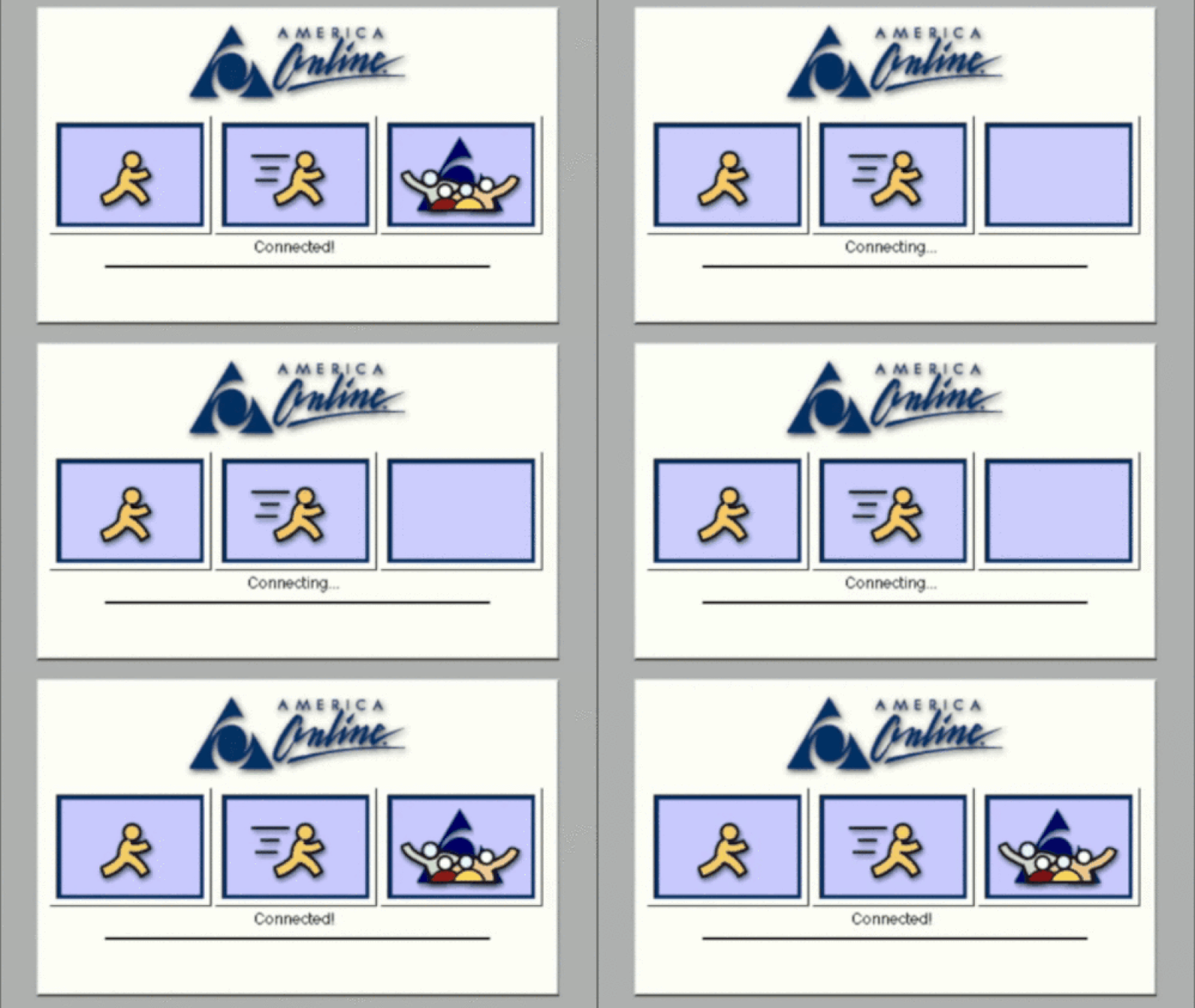
The blinking line used to let a user know where their cursor is may be one of the very first instances of a UI animation. This simple addition helps to know where you left off and creates movement in an otherwise static document. First patented by Charles A Kiesling in 1967, this small detail acts as the foundation for the UI animations we see today.

Another UI animation that often goes unnoticed but is extremely effective is the pull-to-refresh icon. Without this, users may be unsure if the page successfully refreshed or not. This visual cue lets you know your action was successful.

This animation was created by Efi Kabak and posted on Dribbble.com. This example became the main inspiration for my UI animation. I enjoy when navigation icons turn into something fun that’s related to the website. This could easily be used on a pizza restaurant’s website when navigating to the menu.
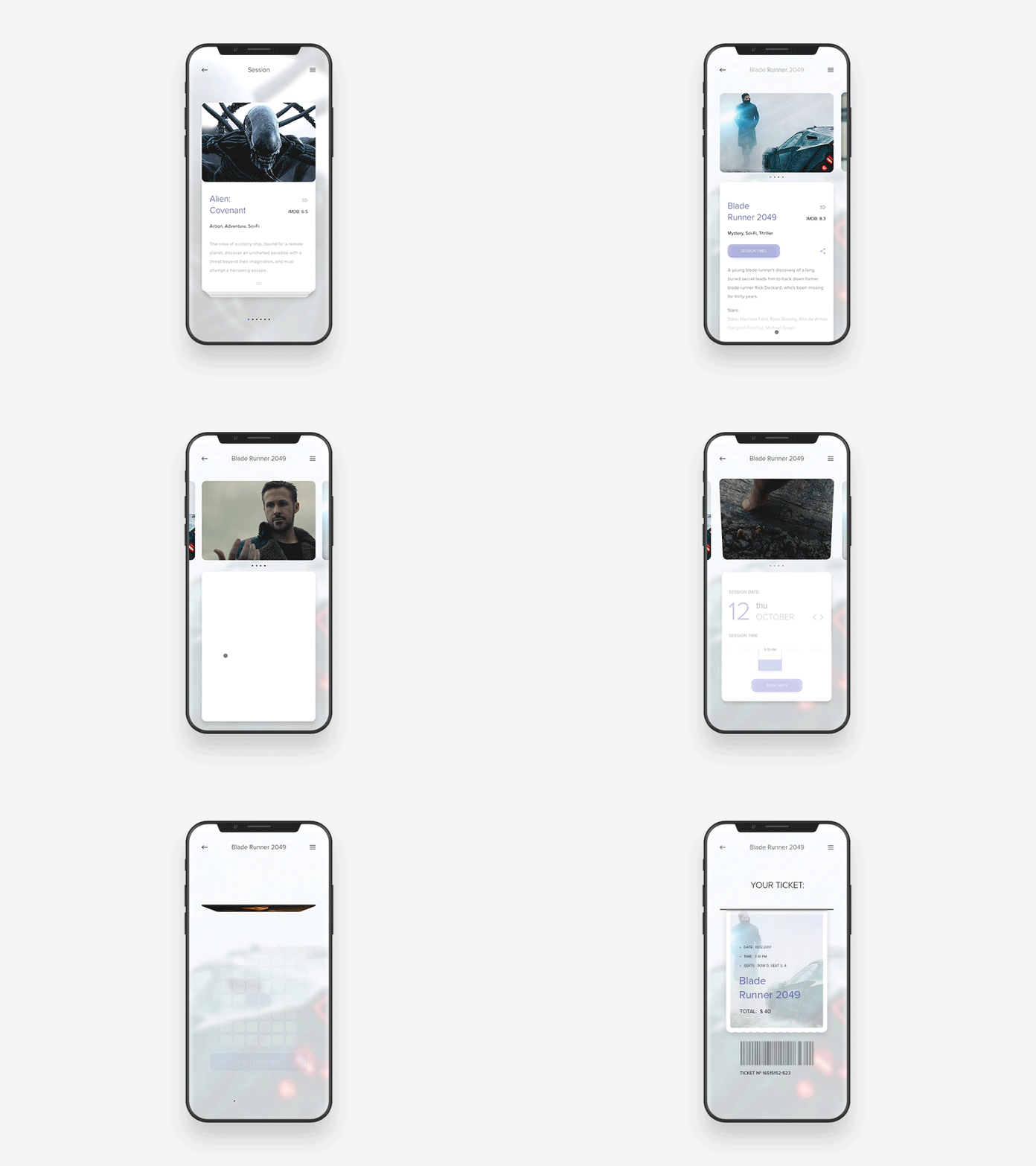
Animations like the one above give users a unique interactive experience that solidify their actions. The act of tearing a ticket is satisfying and permanent, which gives the user confirmation of their purchase. Other ways this can be conveyed is by changing colors, shapes, sizes, or text to amplify the action.
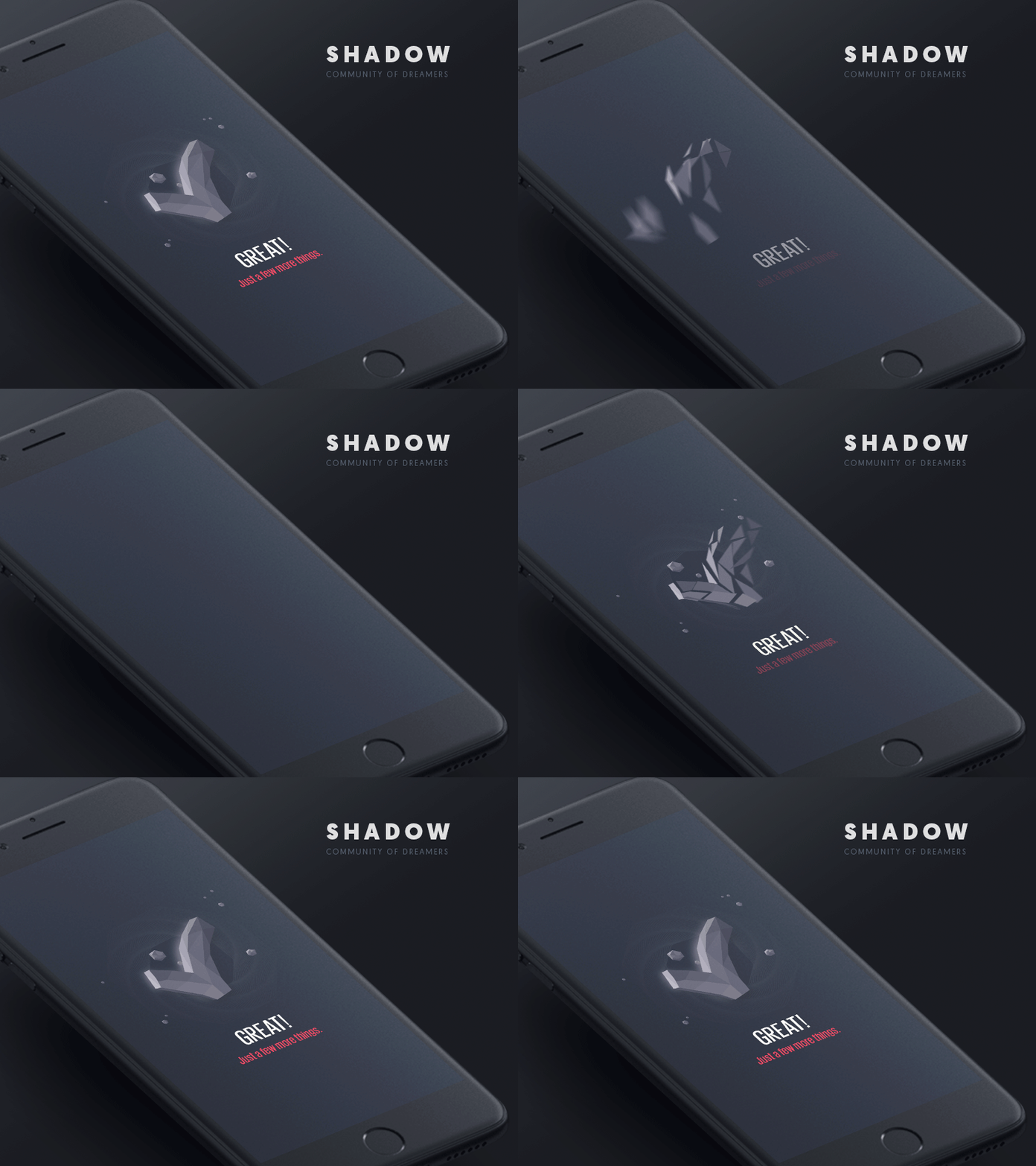
Lastly, this example shows how UI animations can keep a user engaged while completing a number of steps. They create unity and personality throughout the process, which keeps users focused and excited to complete their task.
My Turn!
For my attempt at UI animation, I chose to turn a hamburger menu into eating utensils to convey the opening of a virtual food menu. The motions have to happen quickly, so including only the essential details is crucial. I used Adobe After Effects to create this animation.
 Rebecca Branton
Leave a comment